.png)
Customizing Your User Profile
To customize your user profile on McFile, go to the system area My Account. There, you can include an avatar of your preference, create an e-mail signature, or change your password.
Click on your username in the top right corner of the screen, and then click My Account (or click directly on your user avatar).
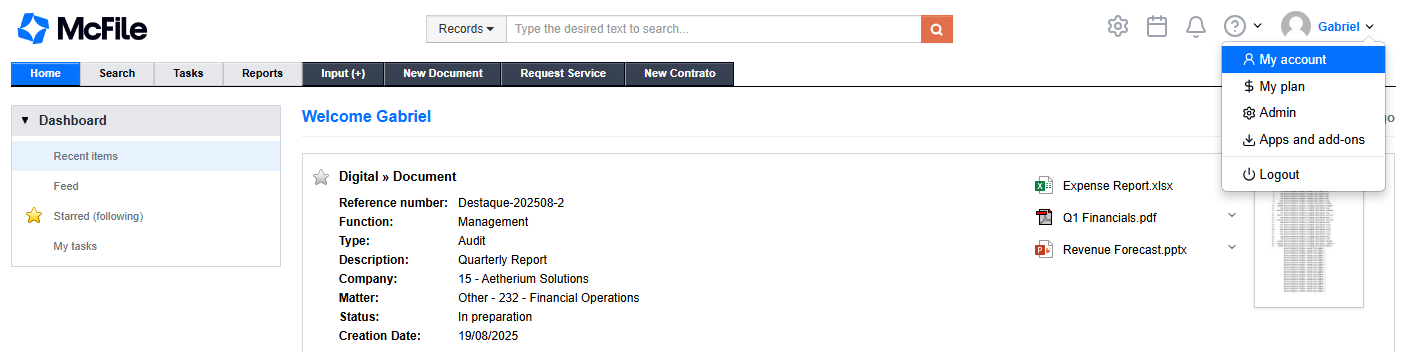
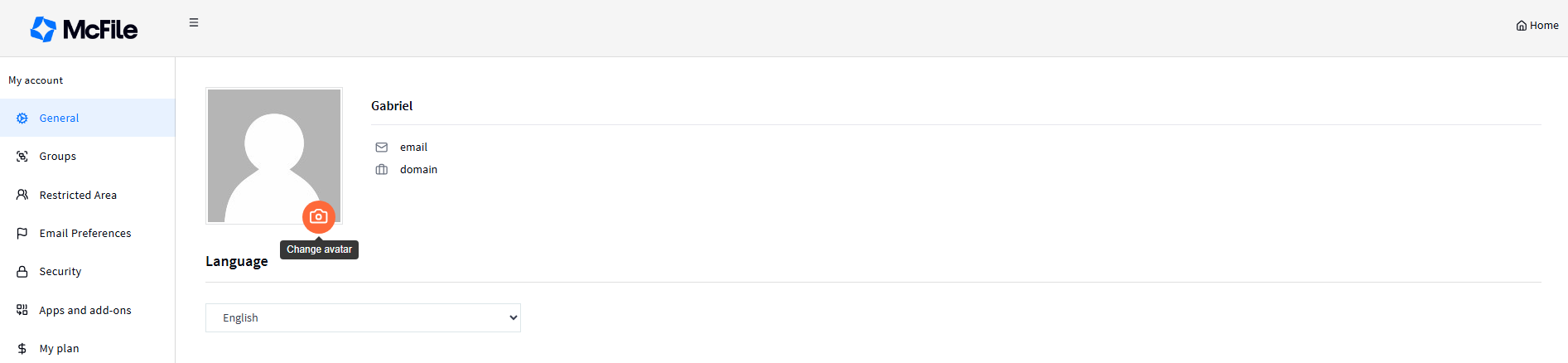
Upon accessing this system area, you can add an avatar to your profile, as well as customize your email signature (which will be automatically linked to every email sent through the system).
Change Avatar
To save or change your avatar, click the camera icon that appears over the current image and select a photo of your preference.
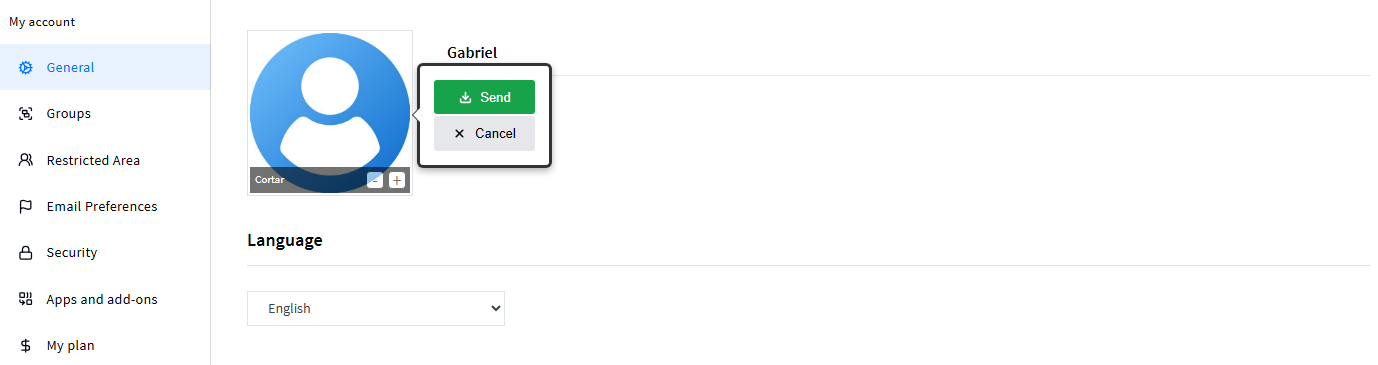
When choosing the image, you can increase or decrease the zoom level by clicking the + or - buttons, respectively.
To save the new avatar, click the Send button.
Create E-mail Signature
You can define your email signature in the area located below the avatar. There are two options: create it from scratch using the system editor or insert your standard signature with a simple "copy and paste".
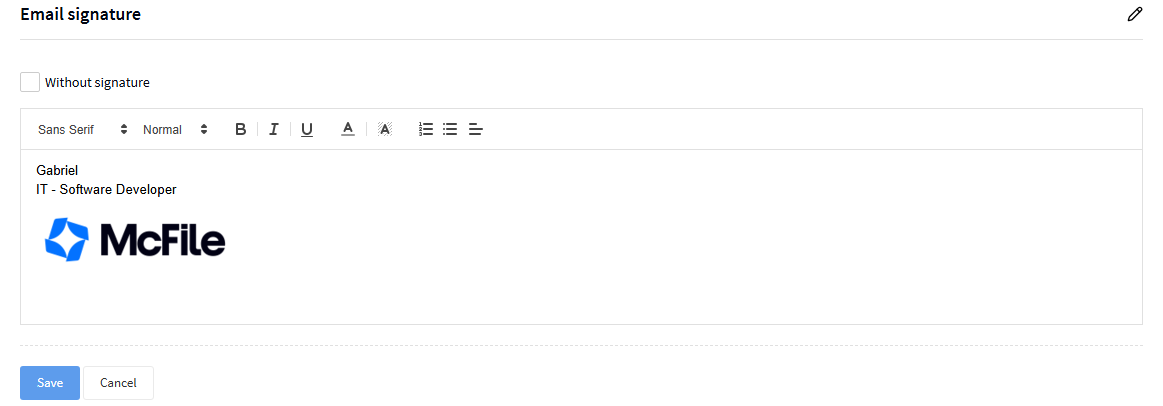
Click the Save button to register your signature on the platform.
Change Password
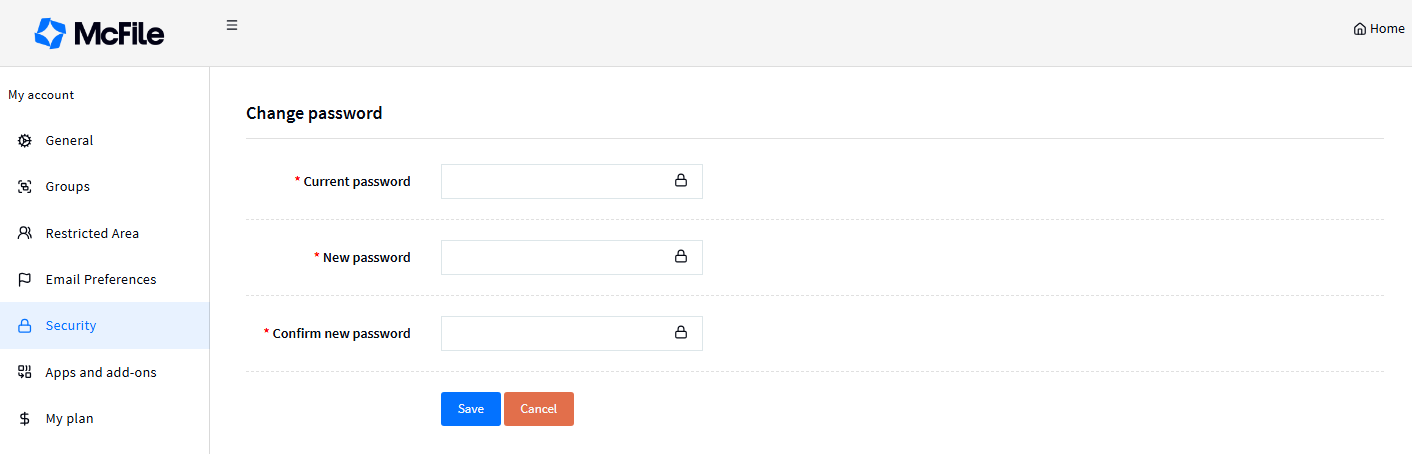
To change your platform access password, click the Security option, located in the menu on the left side of the screen. Then, fill in the form fields and click Save.
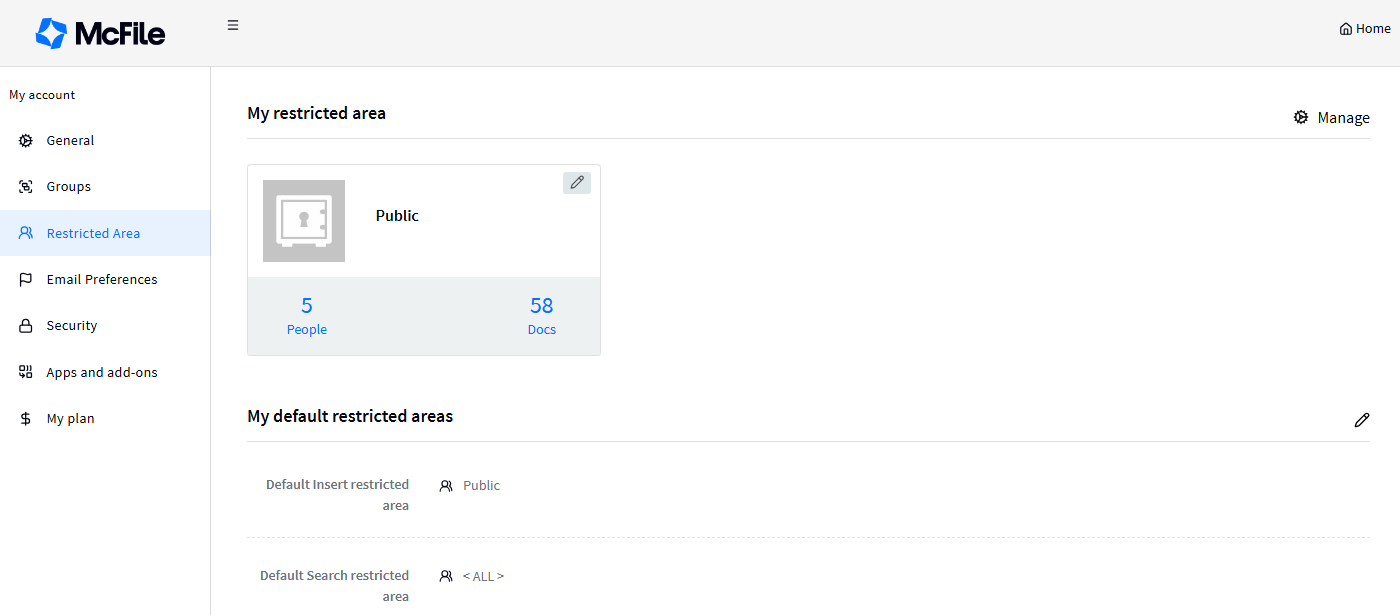
Change Default Restricted Areas
This tab displays all available restricted areas. You can change the default secrecy area for registration and search by clicking the pencil icon positioned in the right corner.