.png)
Registering External Users on McFile
Unlike internal users, external users operate in a more controlled environment. You define exactly which companies they have access to, ensuring that the right information is only in the hands of those who need it.
User management is exclusive to users with Administrator permissions.
Creating an external user in the system
1. Click on your username located in the upper right corner of the screen.
2. Select the Admin option.

3. In the navigation menu, select the Users > External Users option.
4. Click the New external user button, located on the upper right side.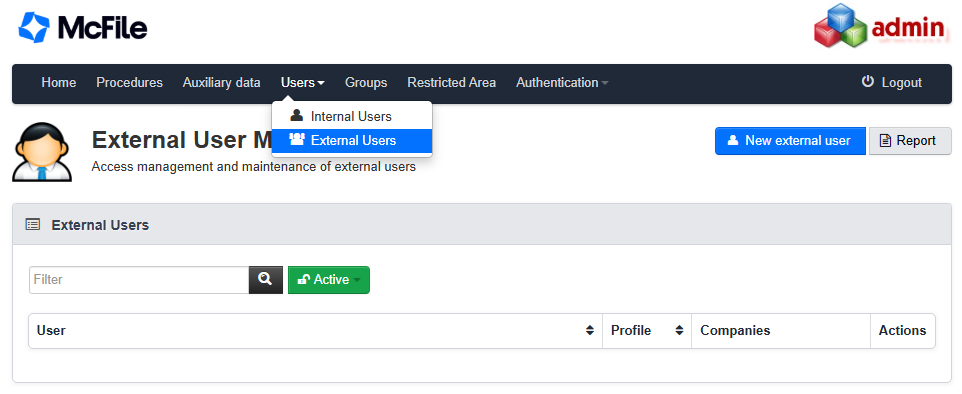
5. Fill in the form fields with the user's data:
- User: the institutional email that will serve as the login.
- Name: the user's full name.
- Privileges: extra user permissions, such as document maintenance, public link creation, and record printing.
- Restricted Area: areas where the user can view and edit records.
- Companies: which companies the external user will have access to.
6. Select the Create button, on the upper right side, to finish the registration of the new user.

The system will automatically send an email with first-access instructions to the registered user.
Managing registered users
After creation, it is possible to edit the accounts through the actions menu in the user list.
- Dark blue button: allows editing account information and permissions.
- Light blue button: displays a detailed list of user permissions.
- Green button (open padlock): indicates that the account is active; click to block access.
- Red button (closed padlock): indicates that the account is suspended; click to unlock access.