.png)
Performing a search with specific fields
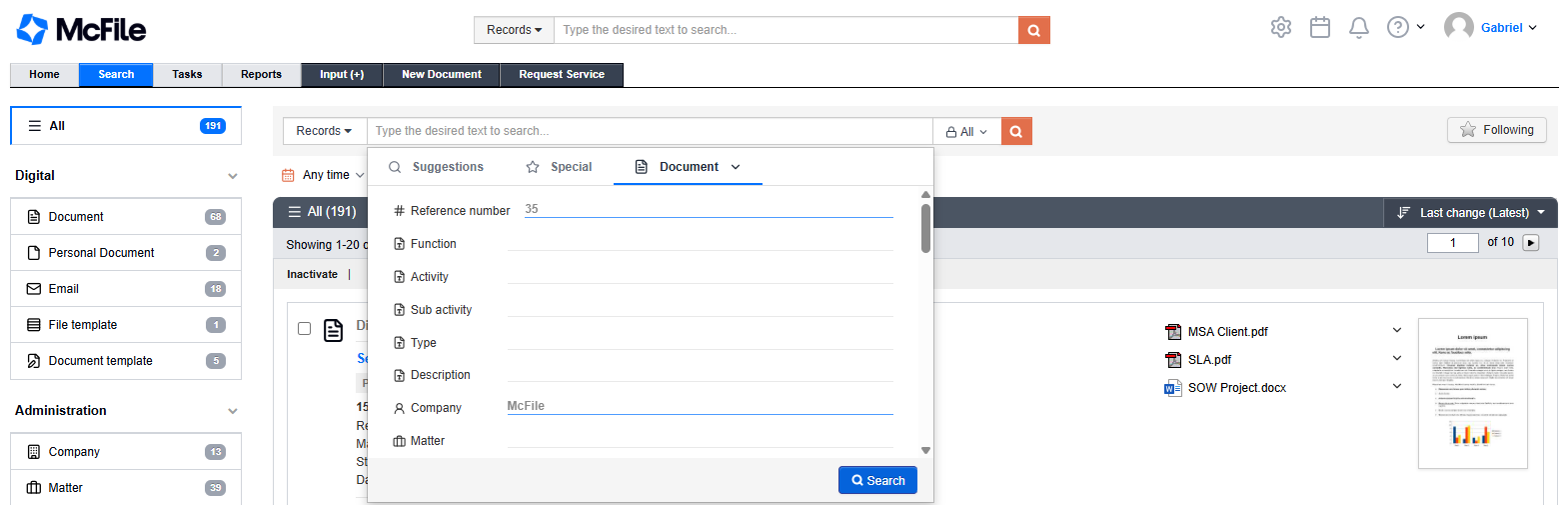
If you need a more accurate result, you can choose which specific system field the word should be searched in (such as a contract number or a client's name).
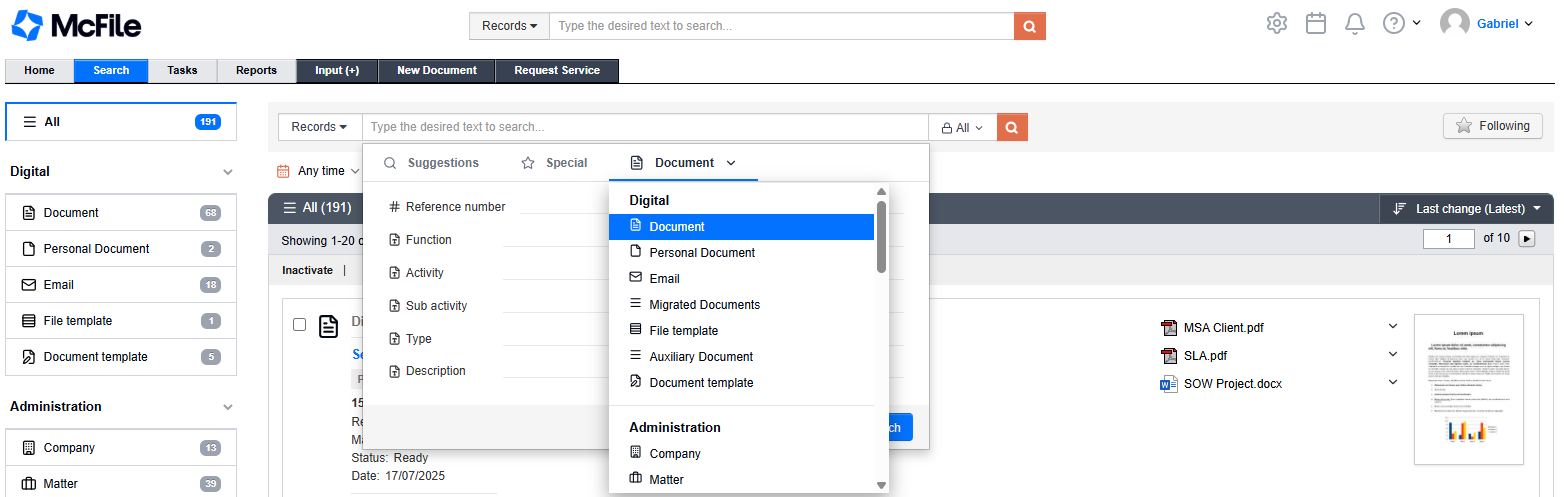
1. Click on the search bar and choose the record type you want to search by clicking the arrow next to the name. The Document type is selected by default.
The filter fields change automatically depending on your choice.
2. Type the word in the desired field (e.g., searching only in the "Reference number" field). In fields that have an auxiliary table, the system will suggest autocomplete options as you type. Simply click on the correct suggestion.
If the field you need is not appearing, click on More fields to see all available options.
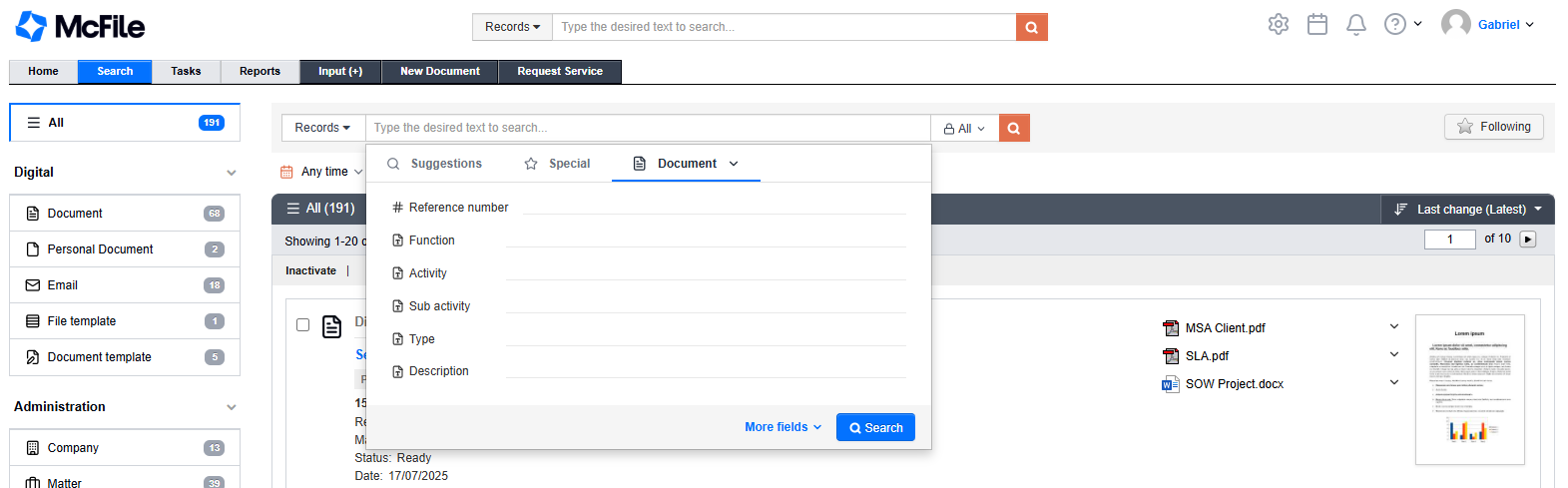
3. Click the Search button to perform the search in the system.